
Copy Trading 101
What is copy trading?
Copy trading automatically mirrors another trader's positions in your own wallet. Choose a trader, connect a bot, and every qualifying trade is copied using your chosen position size.
Throughout this guide we'll use Kreo as the example bot because it's currently our recommended option for Polymarket copy trading. The concepts apply to other bots too, but the screenshots and walkthrough use Kreo.
Polymarket runs on Polygon, so every trade is public on-chain. Anyone can look up a wallet's full trading history. That's what makes following a trader's activity possible in the first place.
You stay in control the whole time. Your funds never leave your own wallet, and copy trading doesn't guarantee a profit — it only copies a trader's decisions, not their results.
How copy trading works
Every copy trade follows the same basic flow, in four steps.
- 1
A trader opens a position
Someone you're following buys into a market on Polymarket. Because Polymarket runs on Polygon, this trade is visible on-chain straight away. - 2
Kreo detects the wallet transaction
Kreo watches the trader's public wallet address. It picks up the new trade within seconds of it happening. - 3
Kreo calculates your trade size
Kreo doesn't always copy the trader's exact dollar amount. It uses the sizing method you chose when you set up the task — Fixed, Exact, Percentage, Portfolio Weighted, or Balance Weighted. Each option is explained later in this guide. - 4
Kreo submits the order from your wallet
The trade is placed from your own connected wallet, not the trader's. Your price can differ slightly from theirs because of the short delay and any market movement in between.
Benefits & Risks
Benefits
- Save hours of manual research — trades mirror the moment a trader you follow opens them.
- Follow more than one trader at once to spread your risk instead of relying on a single strategy.
- No trading experience needed — Kreo handles wallet setup and trade execution for you.
Risks
- A losing streak from the trader you copy becomes a losing streak in your own account.
- A short execution delay can mean a slightly worse entry price than the trader received.
- Copying a trade at 1:1 dollar amounts can over-expose a smaller account relative to theirs.
This is not financial advice
Copy trading automates execution. It does not remove trading risk. Only trade with money you can afford to lose.
Choosing a trader
A strong week means very little on its own. Before following a trader, look at:
- Consistent history — months of trades, not one lucky run.
- Drawdown — how much they've lost during a bad stretch.
- Trading frequency — how often they open new positions.
- Position sizing — whether their bet sizes look sensible.
- Market specialisation — the type of markets they focus on.
Most traders worth following fall into one of a few broad styles:
| Style | What it looks like | Best for |
|---|---|---|
| High-conviction | Large, concentrated positions in a handful of markets | Traders comfortable with bigger swings |
| Diversified | Smaller positions spread across many markets | Traders who want steadier exposure |
| Long-horizon | Fewer trades, held for weeks on slower-moving events | Beginners who don't want to react to every price swing |
A trader's style can shift over time, so check their recent history, not just their overall label.
Why choosing the right bot matters
The bot is the plumbing between the trader's wallet and yours. Rather than picking whichever one you heard about first, compare them on:
- Execution speed — how quickly a trade is mirrored.
- Security — whether the bot can ever touch your funds beyond submitting trades.
- Risk controls — stop loss, take profit, and spend limits.
- Copy sizing options — how flexibly you can scale trades to your own wallet.
- Advanced filters — control over which trades get copied at all.
- Ease of use — how simple the setup and day-to-day management is.
- Pricing — what's free, and what a paid plan unlocks.
This guide uses Kreo to walk through a real setup, but it's worth weighing these criteria yourself. Our Compare Bots page lines up Kreo against other Polymarket copy trading bots side by side.
Creating a copy trade task
Open the bot using our Start Copy Trading link and tap Start. Kreo will automatically create your trading wallet and guide you through depositing funds. Once your wallet is funded, open the main menu and press Copy Trade to begin creating your first copy trading task.
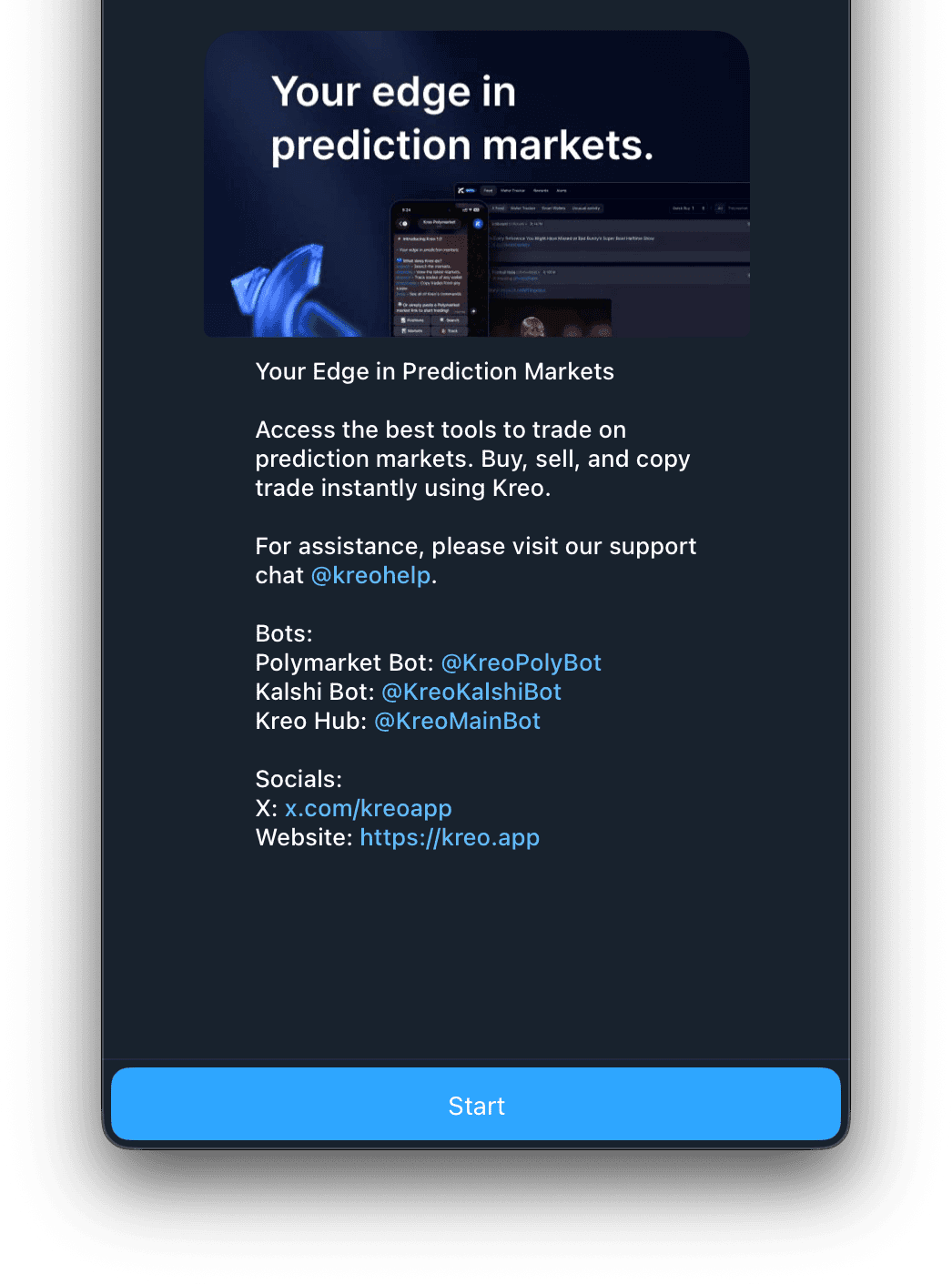
- 1
Open Copy Trade
From Kreo's main menu, tap Copy Trade. This opens the copy trading section, where every task you create will live.
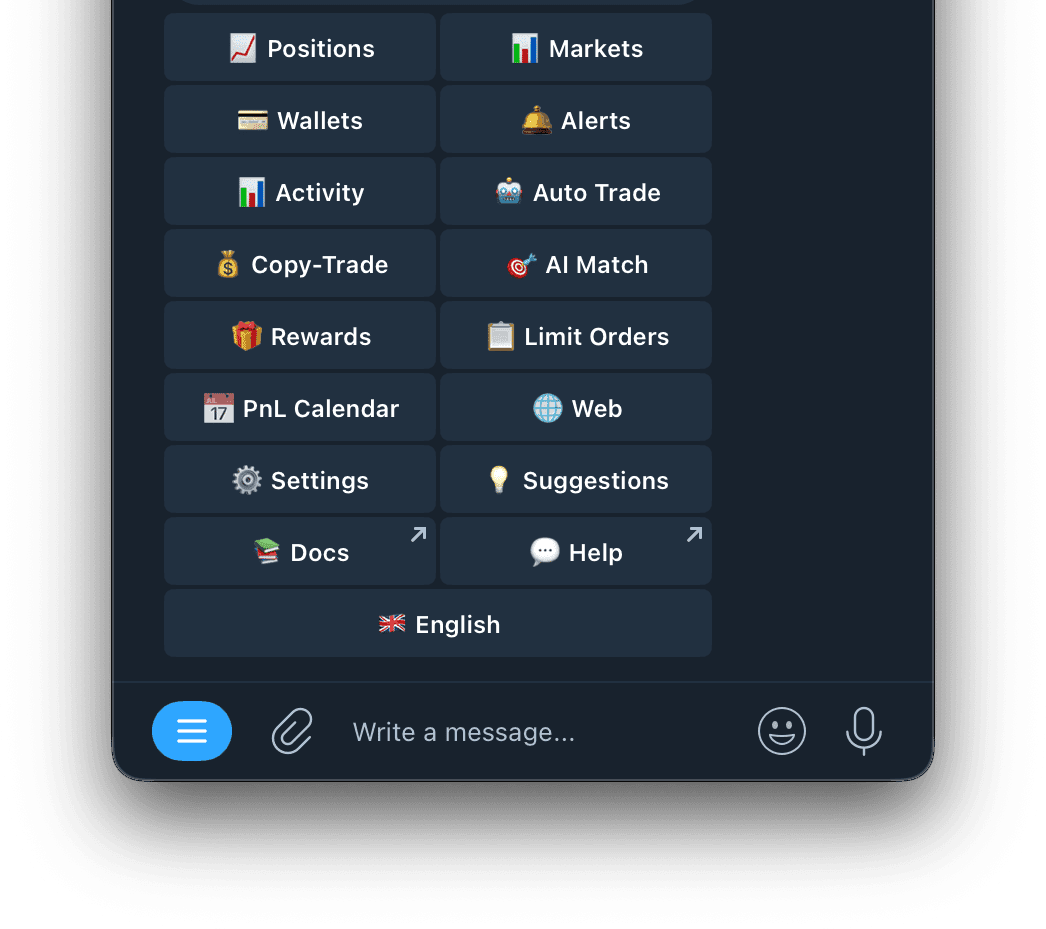
Tap Copy-Trade to open the copy trading section. - 2
Tap Add Task
In Kreo, every trader you copy is set up as a separate task. Each task has its own settings, making it easy to follow multiple traders with different rules.
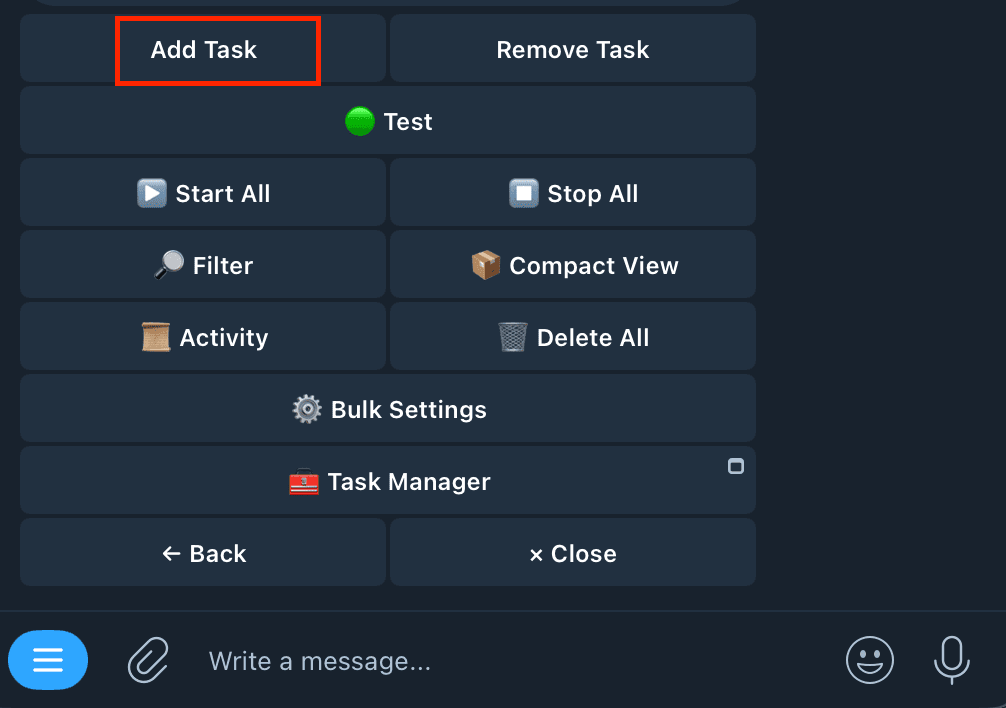
Tap Add Task to create a new copy trade. - 3
Enter the trader wallet address
Paste the trader's public Polymarket wallet address. This is the wallet Kreo will track.
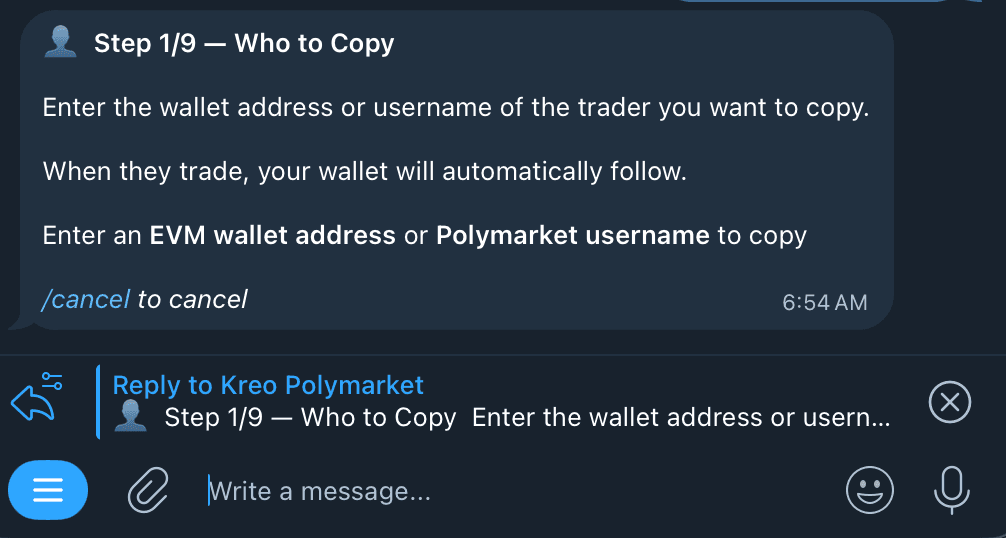
Paste the wallet address of the trader you want to copy. - 4
Name the task, then choose your wallet
Give the task a short, clear name — useful once you're following more than one trader. Then select which of your connected wallets it should trade from. If you only have one wallet, that last part is a formality.
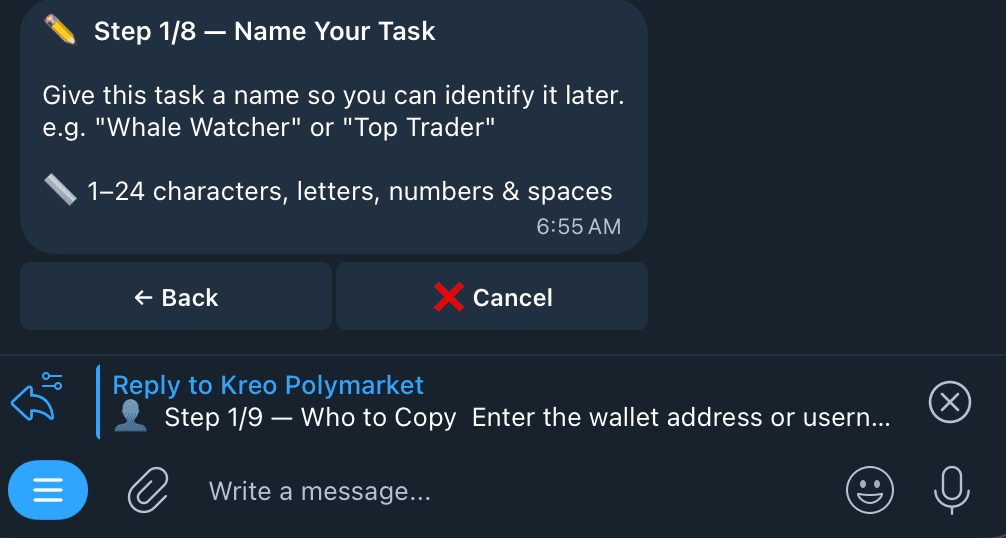
Type a name for your task, then choose your wallet. - 5
Select the copy method
Choose how Kreo sizes your trade compared to the trader's:
Fixed
Always the same dollar amount.
Exact
Matches the trader's dollar amount.
Percentage
A set percentage of the trader's trade.
Portfolio Weighted
Matches their portfolio percentage.
Balance Weighted
Based on their wallet balance used.
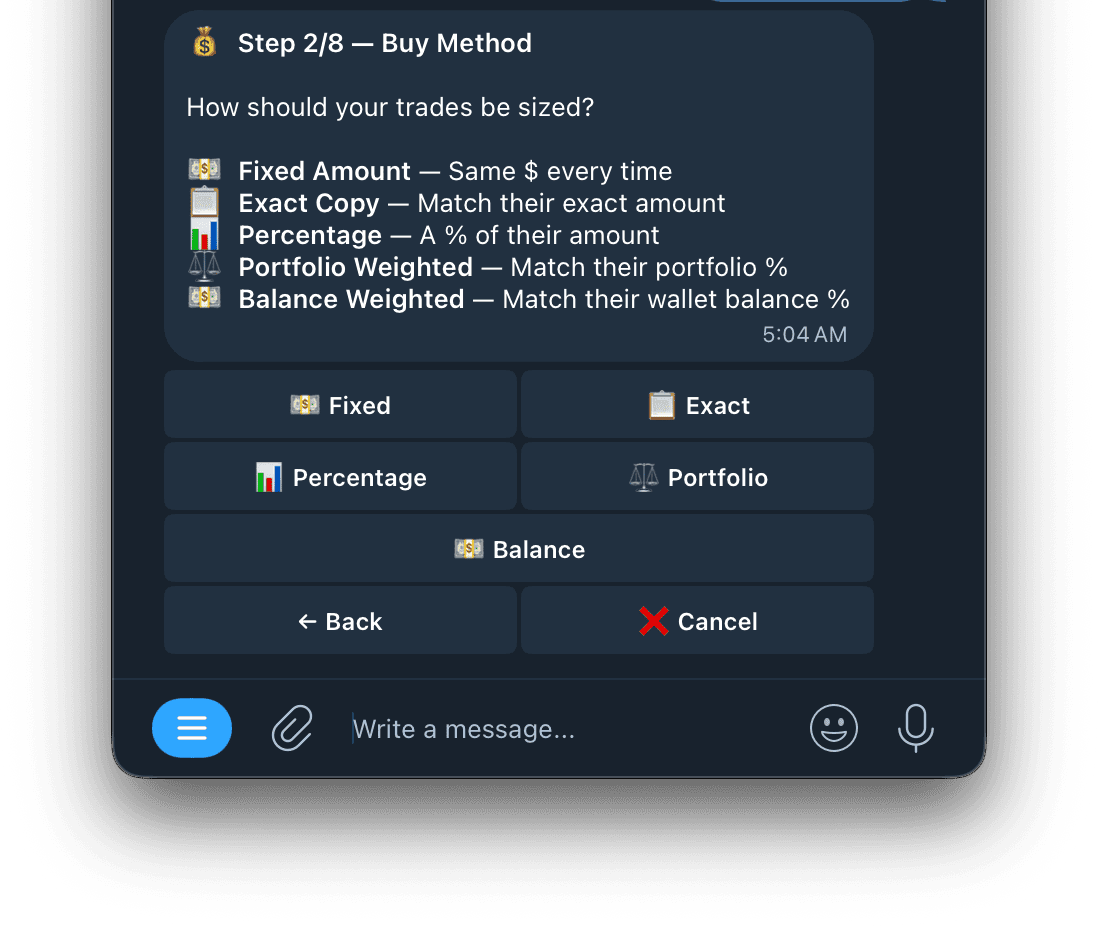
Select a Buy Method to size your trade. - 6
Configure position sizing
Enter the buy amount or percentage for the method you picked. Start small — it's the easiest way to learn how a trader behaves in your own wallet.
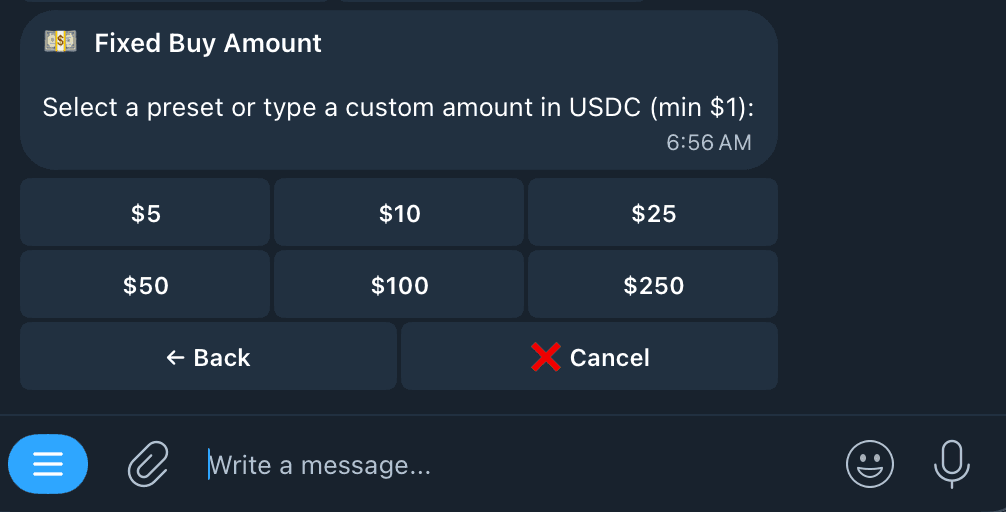
Enter your buy amount in USDC. - 7
Configure optional limits
Optionally set Max Spend Per Market, slippage, an odds range, Stop Loss, Take Profit, and Trade Behaviour. All of these can be left on their defaults while you're still learning.
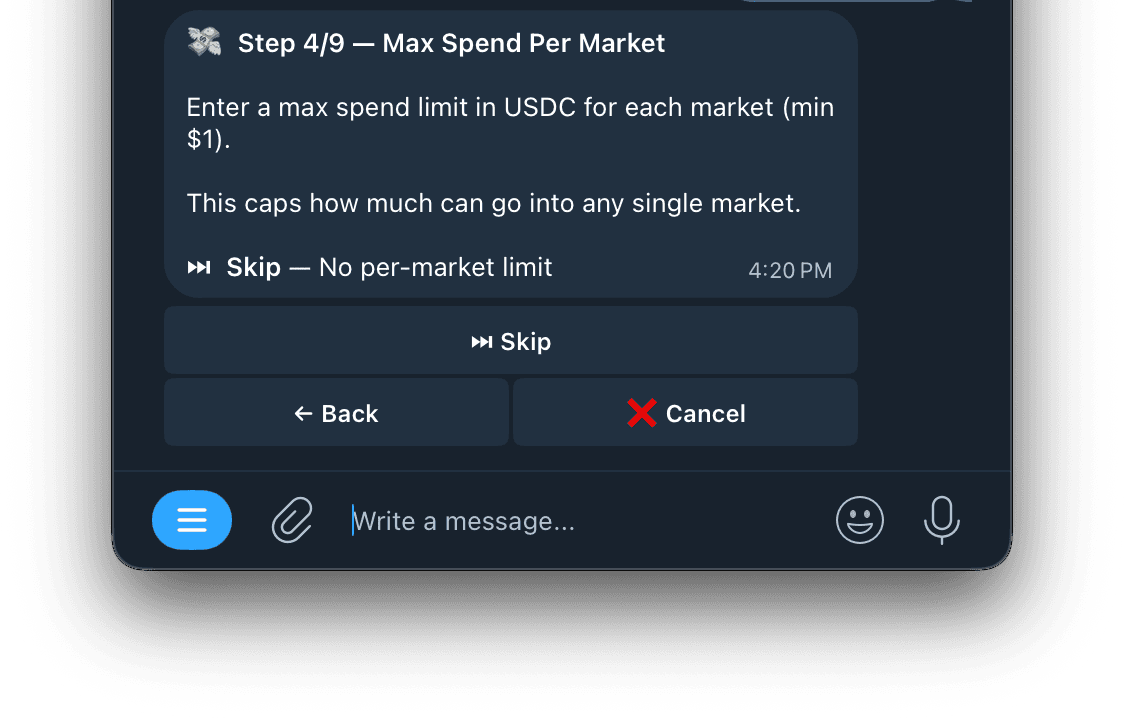
Set a max spend limit per market. 
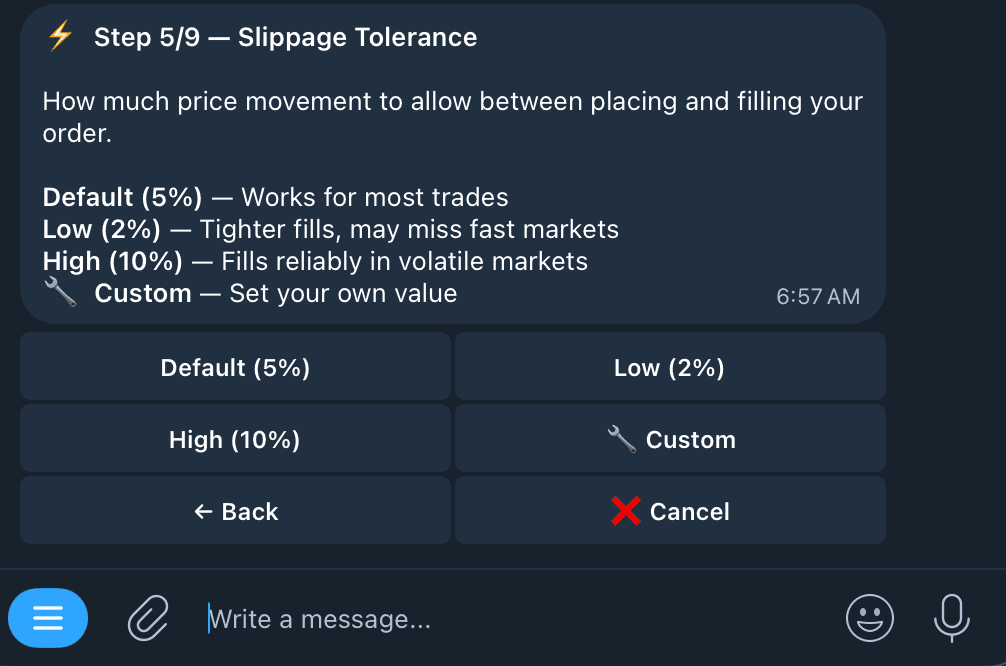
Choose your slippage tolerance. 
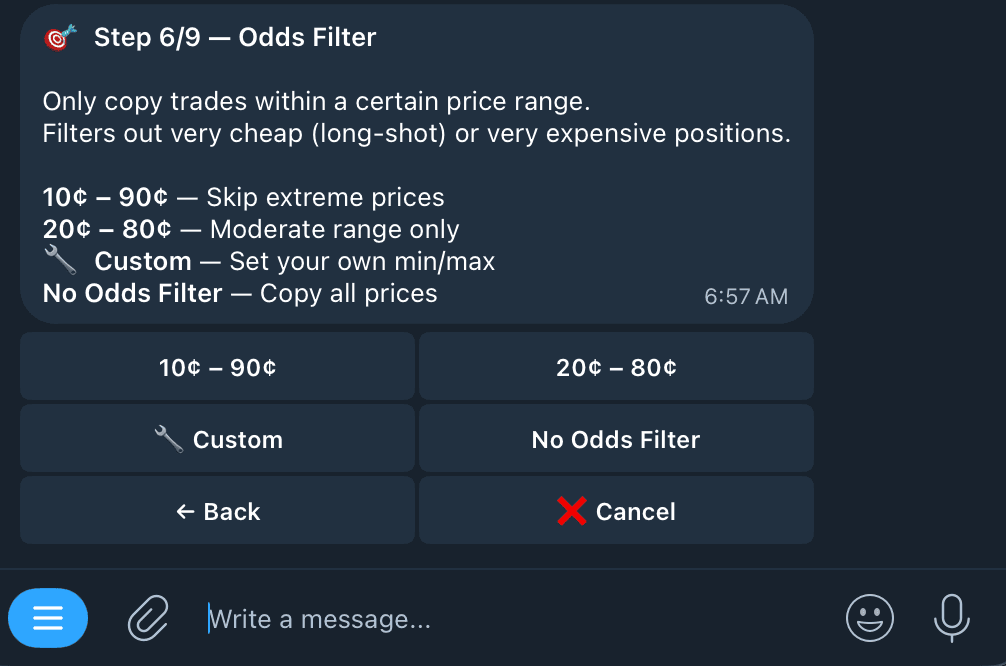
Set a min/max odds range to copy. 
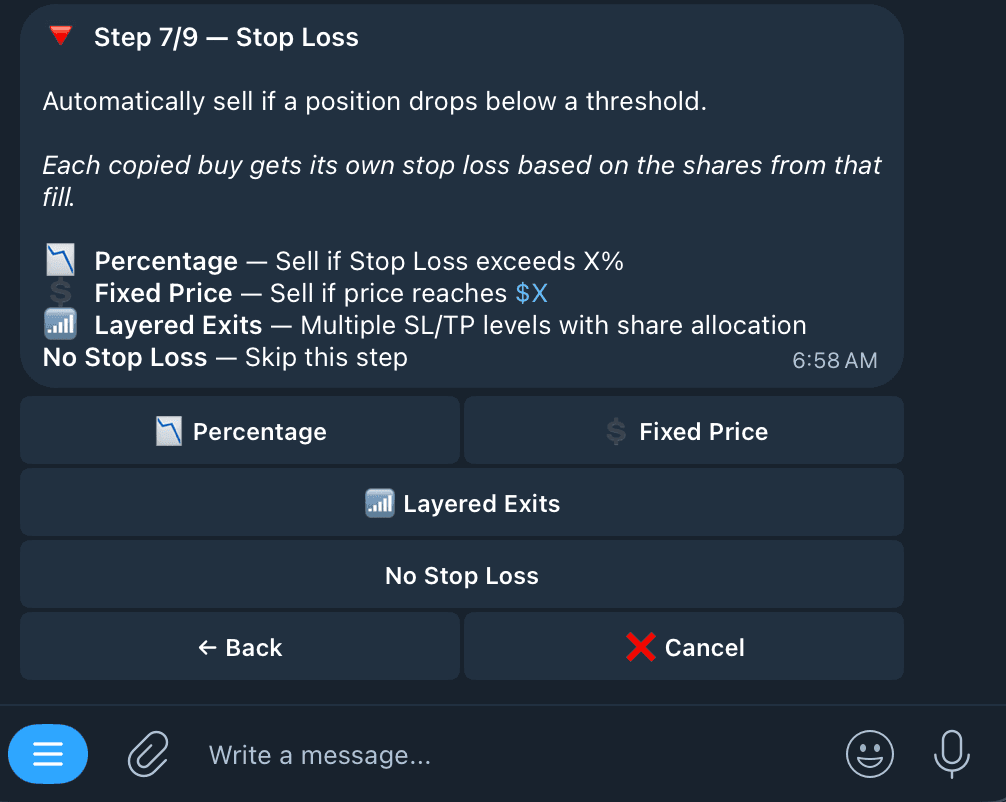
Set a Stop Loss to limit downside. 
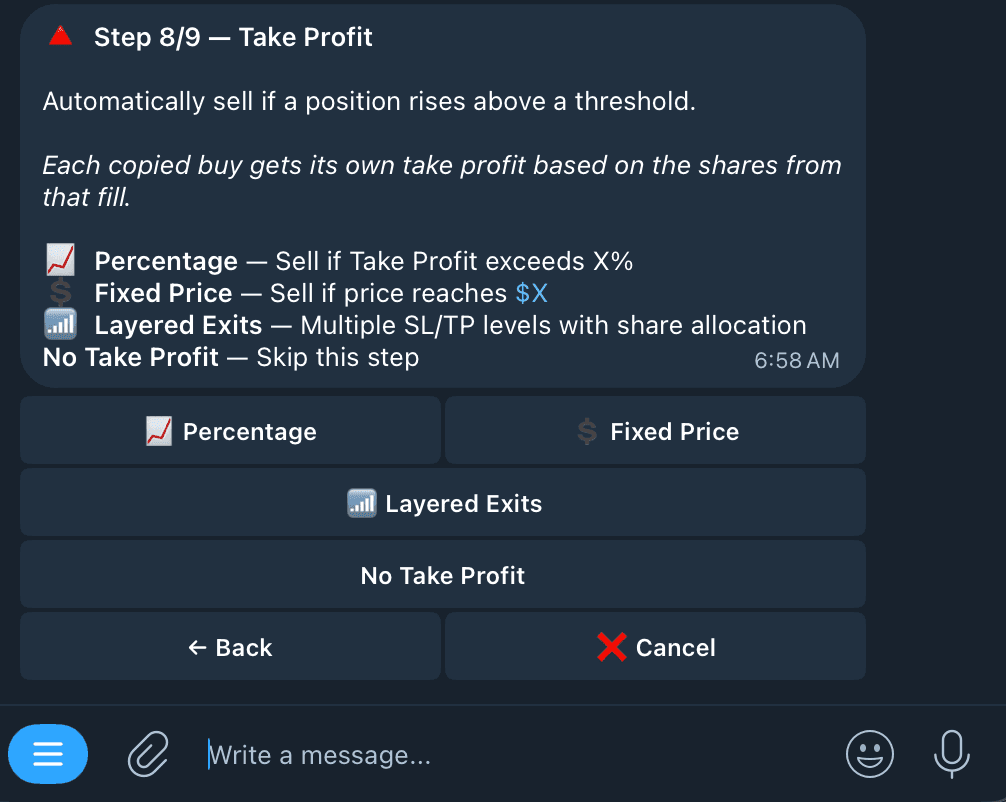
Set a Take Profit to lock in gains. 
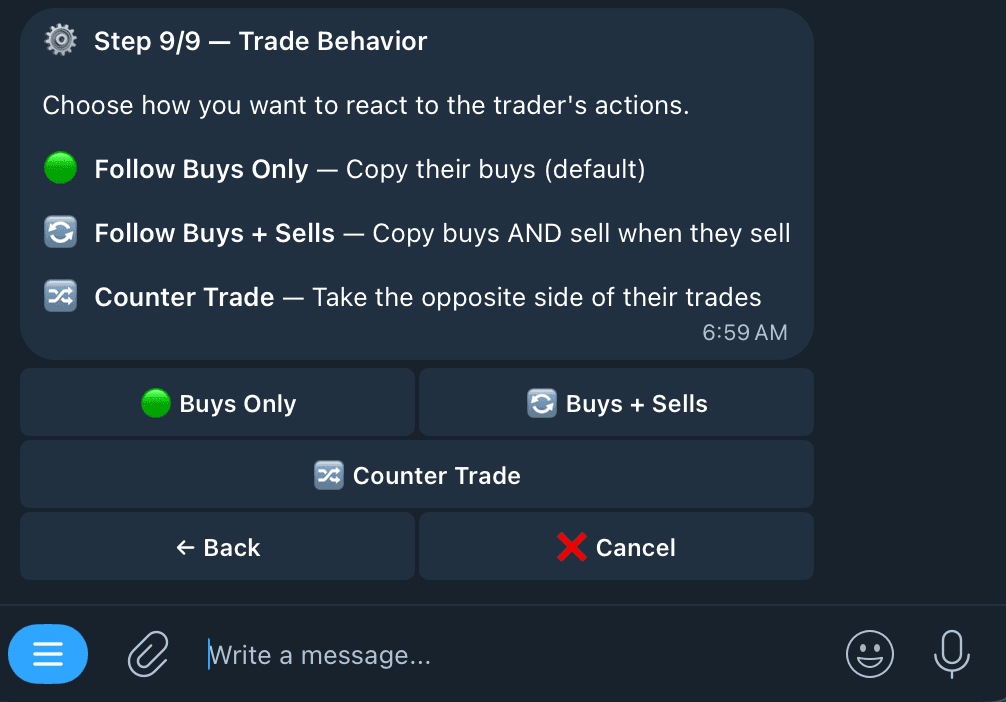
Choose how to react to the trader's buys and sells. - 8
Choose Monitoring Mode
Normal is standard monitoring. Priority checks the trader's wallet more often, which can help on fast-moving markets.
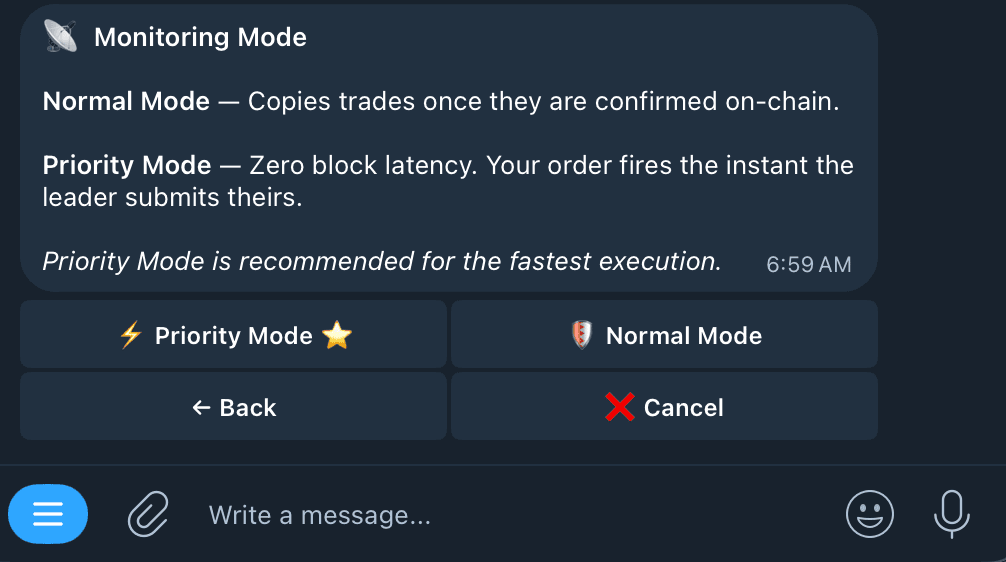
Select Normal or Priority monitoring. - 9
Review the settings
Kreo shows a summary of everything you've chosen. This is your last chance to adjust anything. - 10
Create the task
Confirm to activate the task. It starts copying the trader's next move immediately — it won't retroactively copy trades made before the task was created.
Advanced filters
Kreo includes a range of advanced settings for traders who want more control over exactly which trades get copied. You won't need most of these when starting out, but they're worth knowing about:
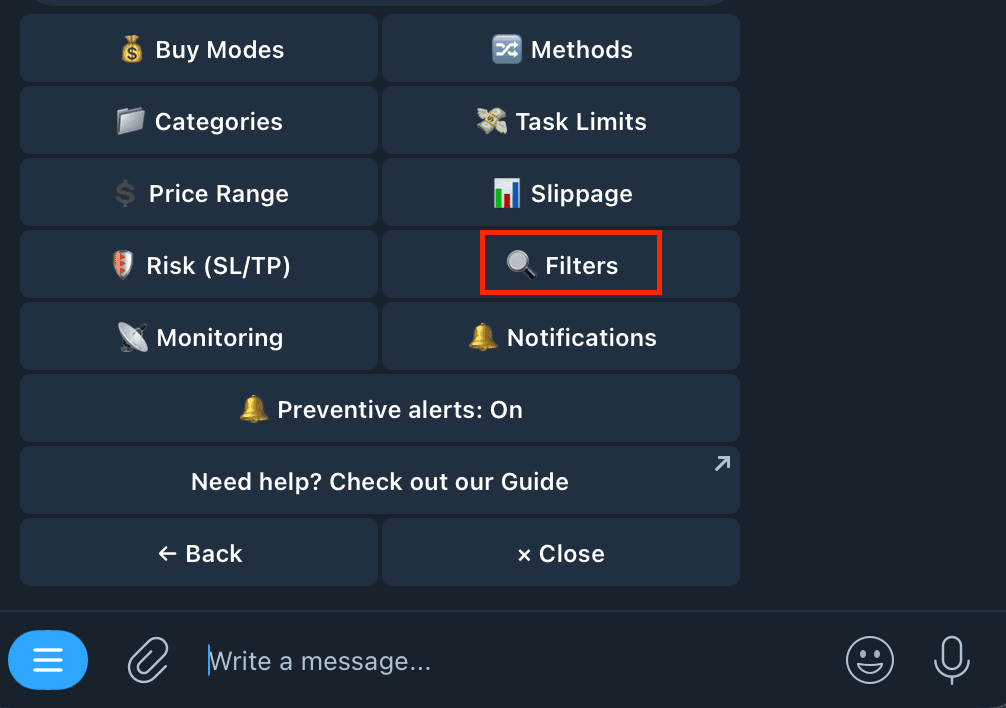
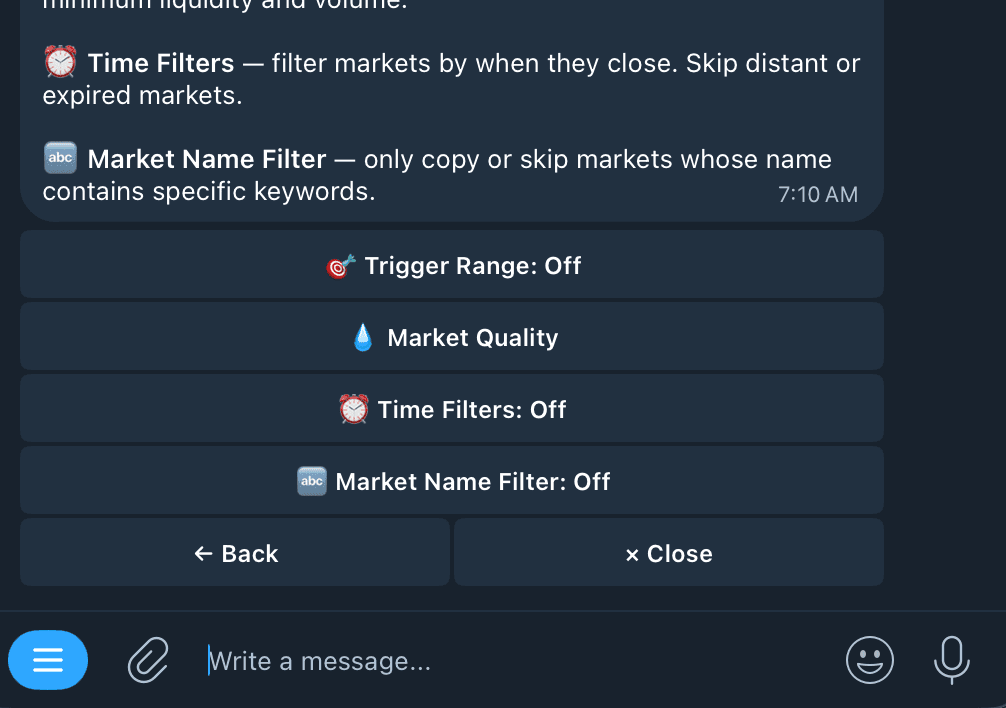
One worth calling out is Price Match Mode. Instead of buying at the current market price, it attempts to enter at the trader's exact entry price (or better) using limit orders.
Managing copy trades
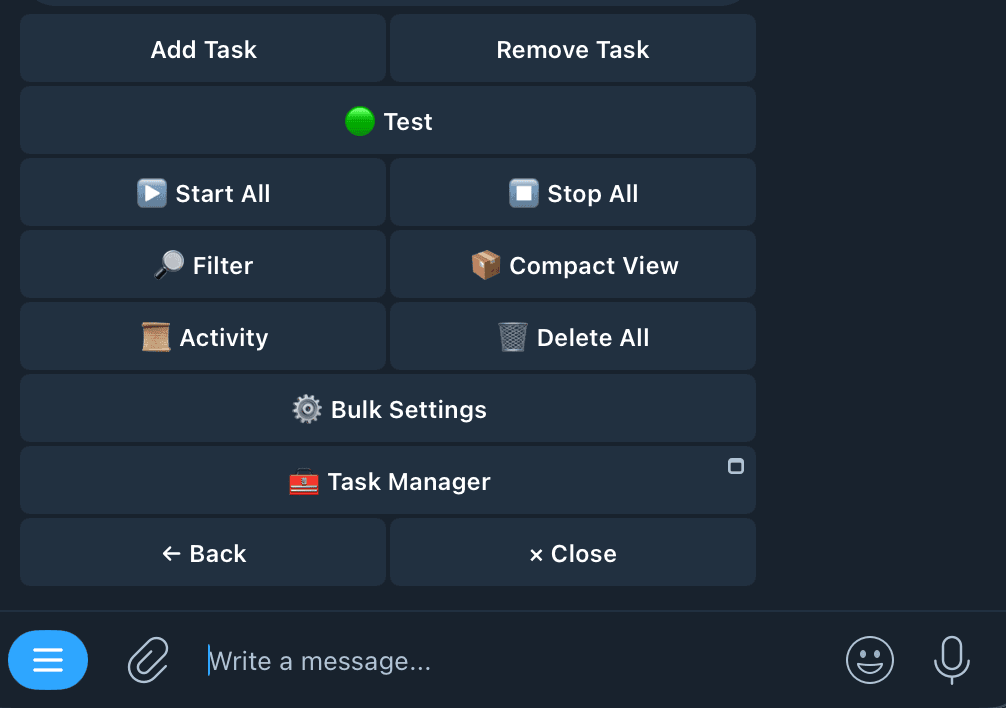
From the Copy Trade menu you can:
- Add Task — Create a new copy trade task.
- Remove Task — Delete a specific task.
- Start All — Start all tasks at once.
- Stop All — Stop all tasks at once.
- Filter — Filter tasks by wallet address.
- Compact View — Show up to 40 tasks on one page.
- Activity — View global copy trade activity across all tasks.
- Delete All — Delete all tasks at once.
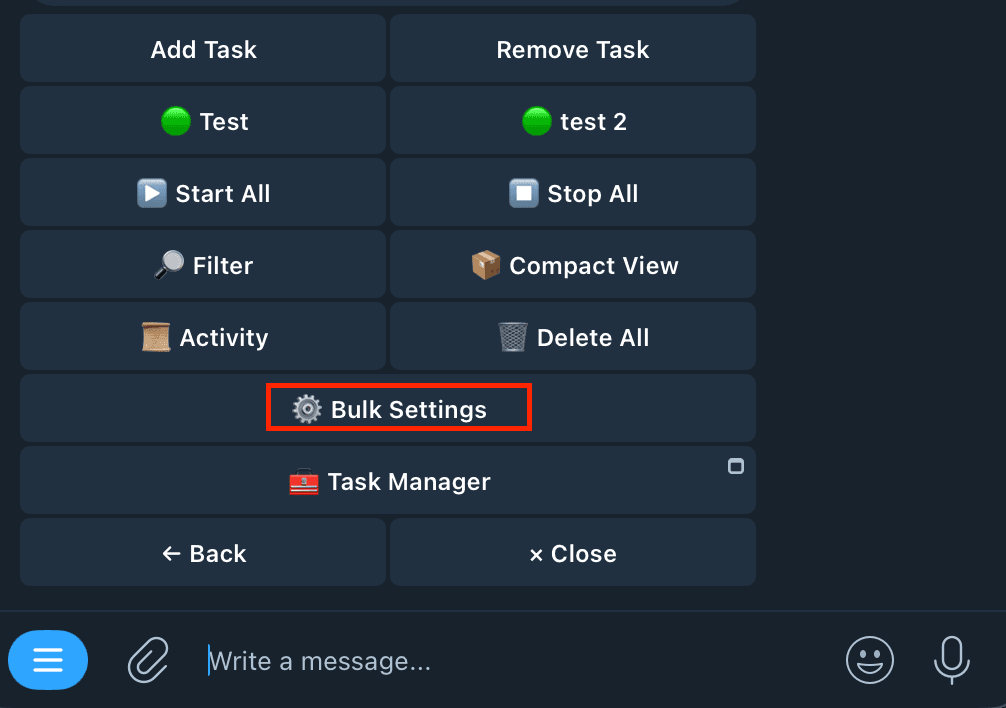
- Bulk Settings — Edit settings across multiple tasks at once.
- Task Manager — Open the copy trade manager mini-app.
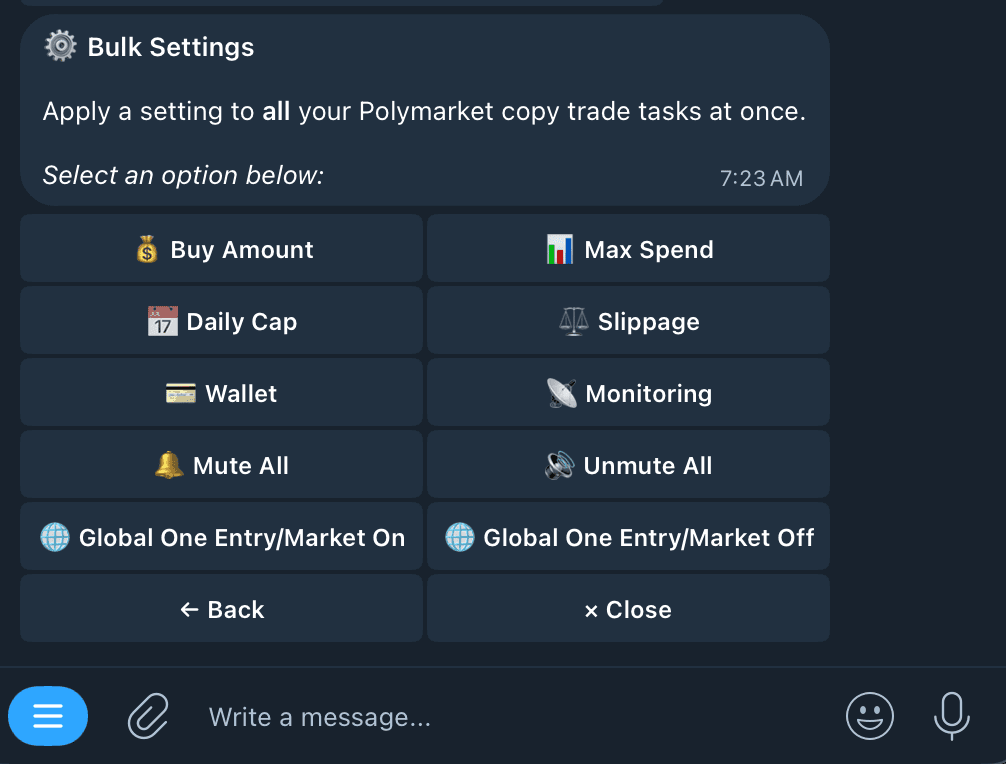
Running several tasks? Bulk Settings applies one change — buy amount, max spend, slippage, wallet, or monitoring mode — across every selected task at once, instead of editing each one individually.
Common Mistakes & Best Practices
Common mistakes
- Following too many traders at once.
- Copying whales with Exact mode instead of scaling to your own wallet.
- Ignoring Max Spend Per Market.
- Running with no Stop Loss.
- Ignoring slippage settings.
- Never reviewing a trader after you start following them.
- Copying a trader after one lucky week.
Best practices
- Start small while you learn how a trader behaves.
- Diversify across two or three traders with different styles.
- Review performance monthly, not trade by trade.
- Adjust position sizing gradually, not all at once.
- Use risk limits like Max Spend Per Market and Stop Loss.
- Monitor your copied trades regularly, even on autopilot.
Final thoughts
Copy trading saves time, but it doesn't remove risk. Choosing good traders matters far more than copying every trade you come across.
Kreo makes the process straightforward — a clear setup flow, filters you can tune as you learn, and settings that stay editable after a task goes live. Throughout it, you stay in control of your own wallet and your own limits.
If you're still deciding which bot to use, compare Polymarket copy trading bots side by side before you connect a wallet.
Ready to start copy trading?
Start Copy TradingFAQ
Frequently Asked Questions
Answers to the most common questions about Polymarket copy trading and using Kreo.
